 SoulNexus
Open in canvas ↗
SoulNexus
Open in canvas ↗
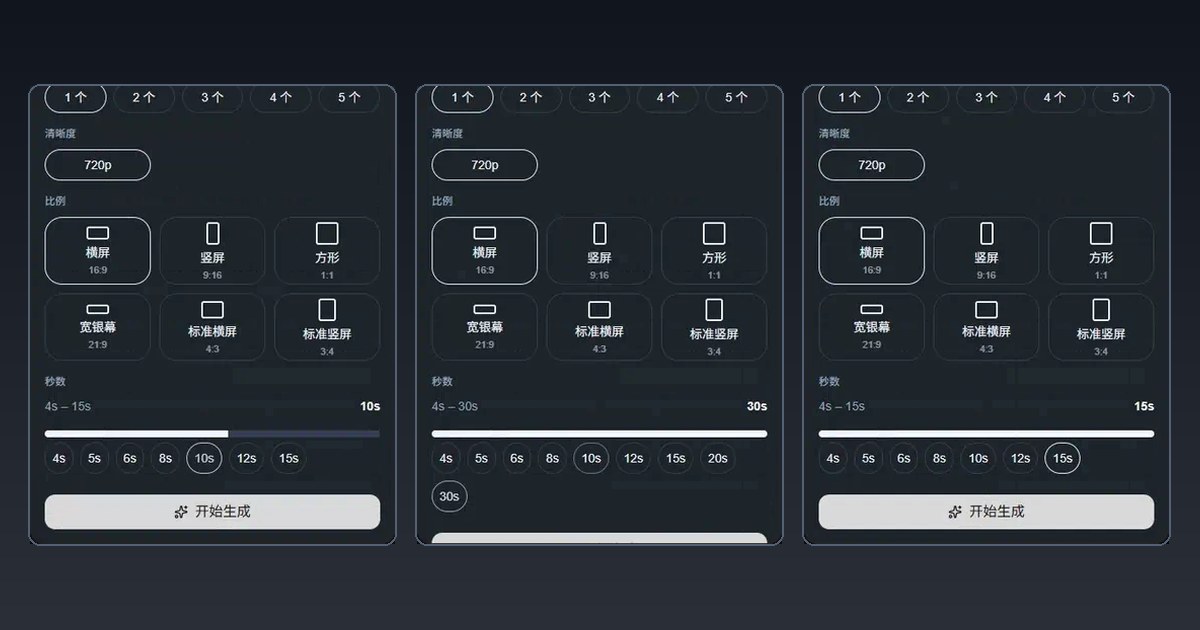
Short answer: choose a Seedance 2.0 option (Mini, Fast or Full) for clips of 4 to 15 seconds with up to 9 reference images, 3 reference videos and 3 audio files. Choose Seedance 2.5 when one shot needs up to 30 seconds or more references (30 images, 10 videos, 10 audio files). In SoulNexus all four render at 720p in six aspect ratios, and the settings panel only offers what the selected model accepts.

Side-by-side limits
Option in SoulNexus | Duration | Reference images | Reference videos | Reference audio | Aspect ratios |
|---|---|---|---|---|---|
Seedance 2.0 Mini 720p | 4–15 s | up to 9 | up to 3 | up to 3 | 16:9, 9:16, 1:1, 21:9, 4:3, 3:4 |
Seedance 2.0 Fast 720p | 4–15 s | up to 9 | up to 3 | up to 3 | 16:9, 9:16, 1:1, 21:9, 4:3, 3:4 |
Seedance 2.0 满血 (Full) 720p | 4–15 s | up to 9 | up to 3 | up to 3 | 16:9, 9:16, 1:1, 21:9, 4:3, 3:4 |
Seedance 2.5 满血 (Full) 720p | 4–30 s | up to 30 | up to 10 | up to 10 | 16:9, 9:16, 1:1, 21:9, 4:3, 3:4 |
Durations are whole seconds. The reference limits match ByteDance's published figures: 9 images, 3 videos and 3 audio clips for Seedance 2.0 on its open platform, and 30, 10 and 10 for Seedance 2.5, which also generates up to 30 seconds in one pass (see sources). The table reflects the SoulNexus catalog on 26 October 2026.
Which one to pick
Short-drama shots of 5 to 10 seconds: a Seedance 2.0 option. Most shots in a vertical drama are this long, and 9 references cover a character sheet, a location and a prop.
One continuous take over 15 seconds: Seedance 2.5. Splitting a long take into two clips usually breaks the motion at the cut.
Many characters or products in one shot: Seedance 2.5, for the extra reference slots.
Product videos from a single photo: any Seedance 2.0 option; see our product photo test.
Mini, Fast or Full?
The three Seedance 2.0 options accept exactly the same inputs; they differ in price and output quality. We have not run a controlled quality comparison yet, so generate one 5-second clip of your own material with each candidate before you start a batch, and check current rates on the pricing page.
How SoulNexus keeps you inside the limits
Options follow the model. Duration, ratio and resolution controls show only accepted values for the selected model.
Settings snap instead of failing. Switching from Seedance 2.5 at 30 seconds to a Seedance 2.0 option moves the duration to 15 seconds, as in the recording above. Durations round up to the next accepted value so dialogue is not cut short.
Reference slots show the real limit. The image, video and audio areas show the selected model's maximum; extra files are left out with a message saying why.
Problems are caught before you pay. A request that breaks a reference rule is stopped with a plain-language message instead of failing after the wait.
Each model shows a health indicator. The model picker shows recent delivery status, so you can avoid a line that is struggling that day.
Billing in one paragraph
With text or image references only, these models are billed per second of output. Adding a reference video switches that job to usage-based billing that grows with the length of the reference clip and the output, settled after the job finishes. Trim reference videos to the seconds you actually need.
FAQ
Can I get 1080p?
Not with these four options; they render at 720p in SoulNexus.
Why did my duration change when I switched models?
The new model does not accept the old value, so SoulNexus moved it to the nearest accepted one, rounding up. Check the duration before you generate.
Is a 30-second Seedance 2.5 clip better than two 15-second clips?
For one continuous action, yes: there is no cut to hide. For two different moments, two shorter clips give you more control and cheaper retakes.
How we checked
Limits come from the SoulNexus model catalog on 26 October 2026 and were confirmed in the video studio settings panel, shown in the recording above. External figures are taken from ByteDance's own publications listed below.
Sources
SOULNEXUS CANVAS
Your next story starts here.
Take this idea into your own creative space. You stay in control of when generation starts.
Open in canvas ↗